Trail Mapping Guide
Recording the GPX Track & Waypoints
Thank you for volunteering to help us map the exact trail routes for the Pony Express Re-Ride! To make sure we have the most accurate exchange points for our support crews, we need you to record the physical trail and drop a digital pin every 2 miles.
📄 Download Printable Guide (PDF)We will be using a free app called Gaia GPS. It acts like a digital breadcrumb trail, recording where you travel so we can build our master map.
Step 1: Download & Setup
- Get the App:
- iPhone Users: Open the App Store and search for Gaia GPS.
- Android Users: Open the Google Play Store and search for Gaia GPS.
- Create a Free Account: Open the app and follow the prompts to create an account. (Note: If a screen pops up asking you to upgrade or pay for Premium, just look for an "X" or "Skip" in the corner—you only need the free version).
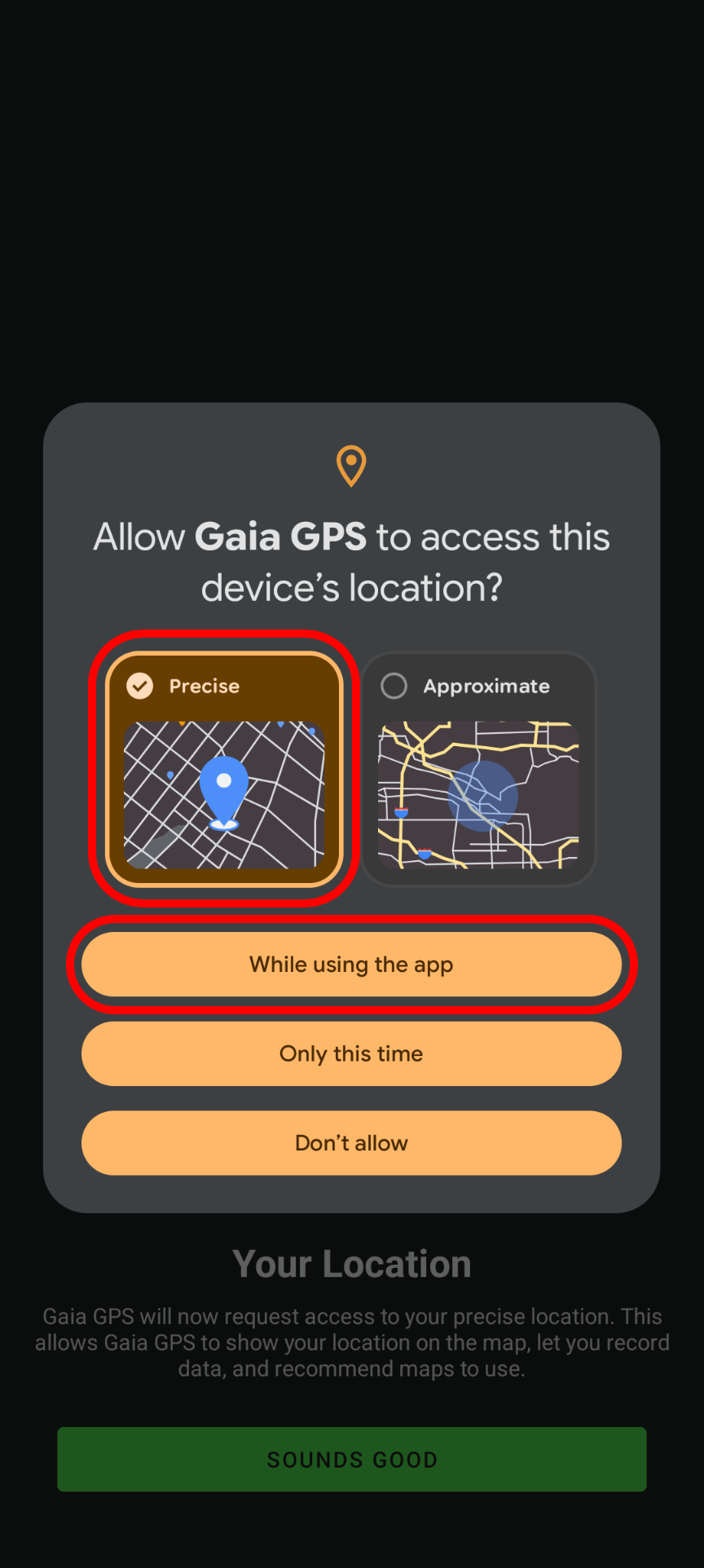
- Location Permission (Crucial!): The app will ask for permission to use your location. You must select "Allow While Using App" or "Always Allow." This is the only way the phone can track your physical path.
Step 2: Start Your Recording
When you arrive at the start of your trail section and are ready to move:
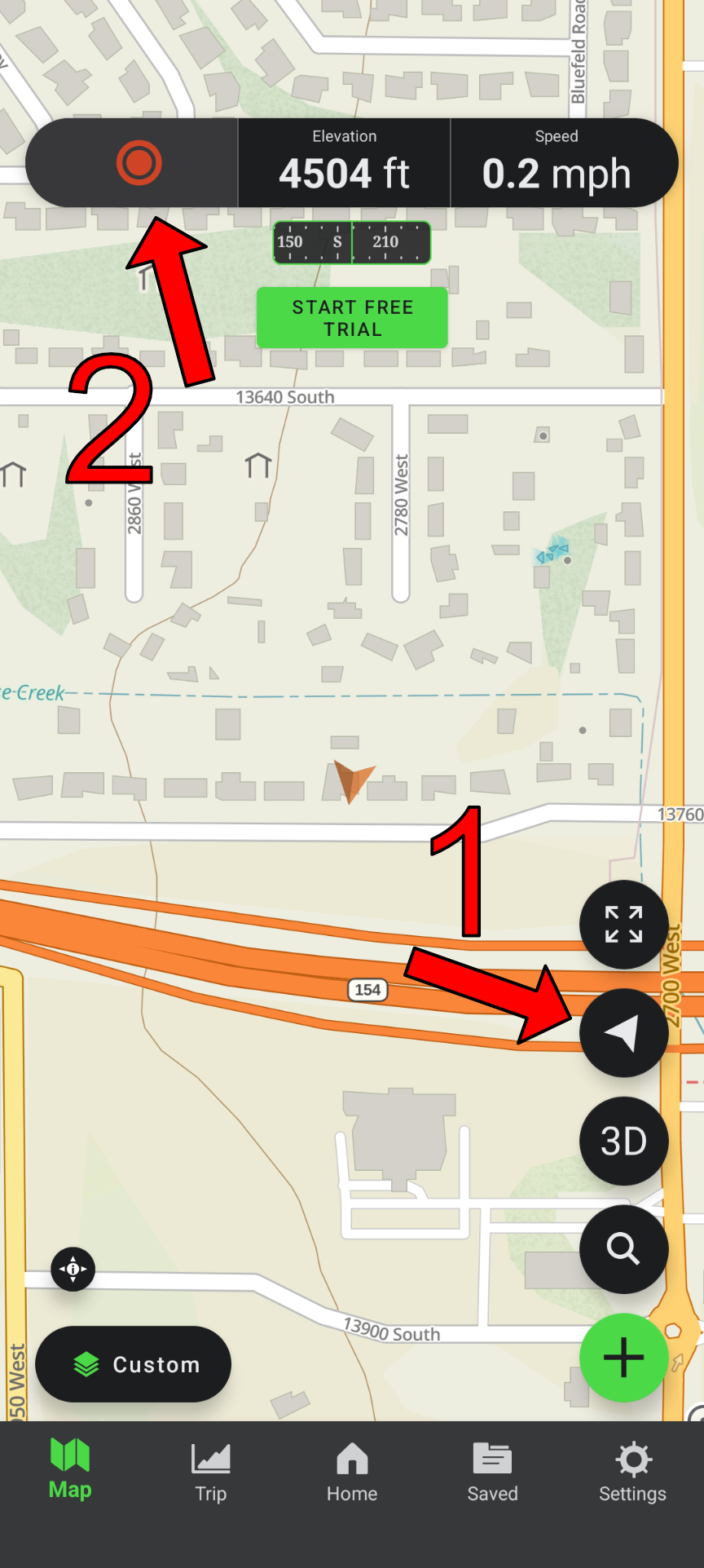
- Open Gaia GPS. You will see a blue dot, or an arrow, on the map—that is your current location. If the map isn't centered on your location, you can tap the location icon that is a black circle with a white arrow inside. Make sure this arrow if filled.
- Tap the Record button at the top left of the screen.
- A timer will appear on your screen. You are now recording! The app will quietly draw a line behind you as you travel. You can leave the app open in your cup holder or running in your pocket.
Step 3: Mark Your 2-Mile Waypoints
We need a digital pin dropped exactly every 2 miles along your route.
- Keep an eye on your vehicle's trip odometer.
- When you hit exactly 2.0 miles, safely come to a stop.
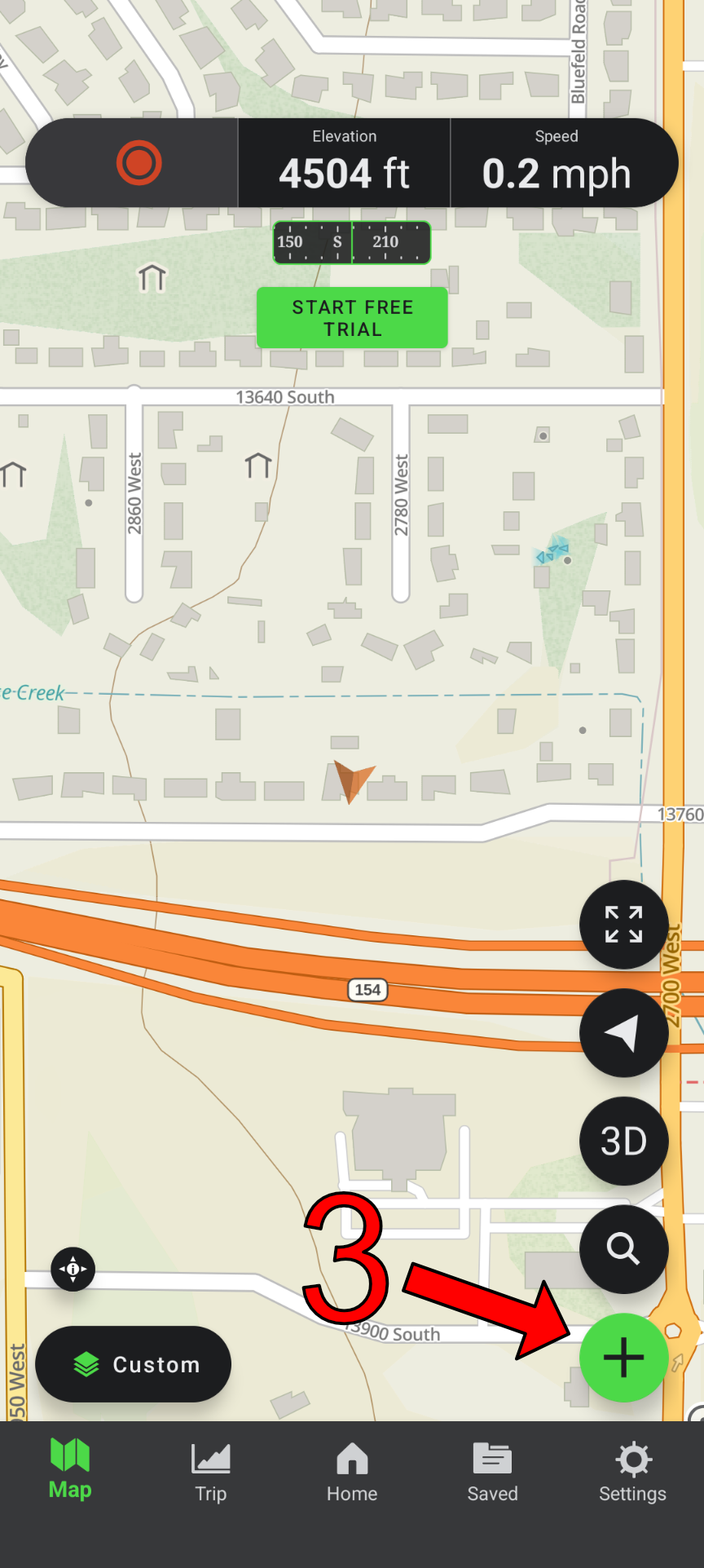
- In the Gaia app, ensure that the location icon is solid white and tap the "+" (Plus) button in the bottom right.
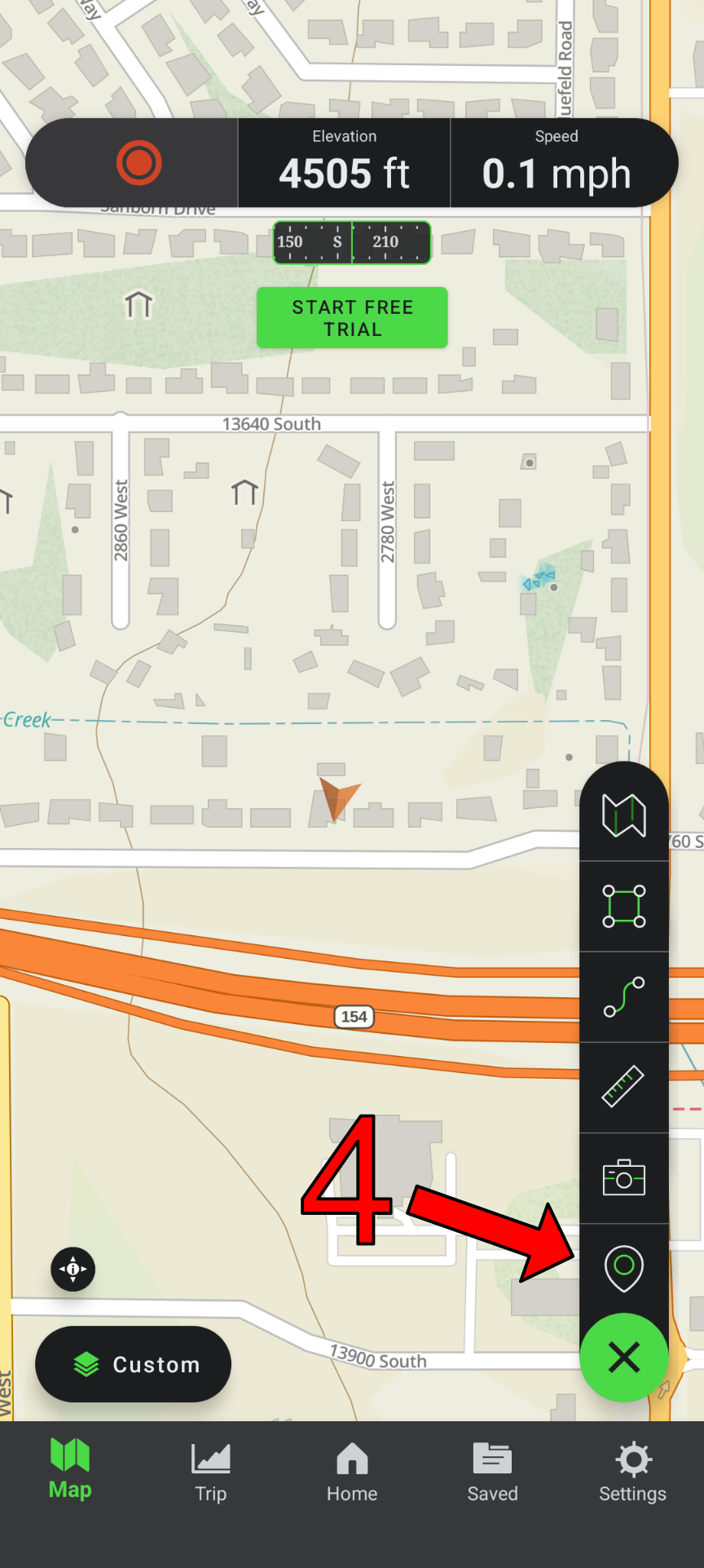
- Select Add Waypoint, the bottom icon in the popup list.
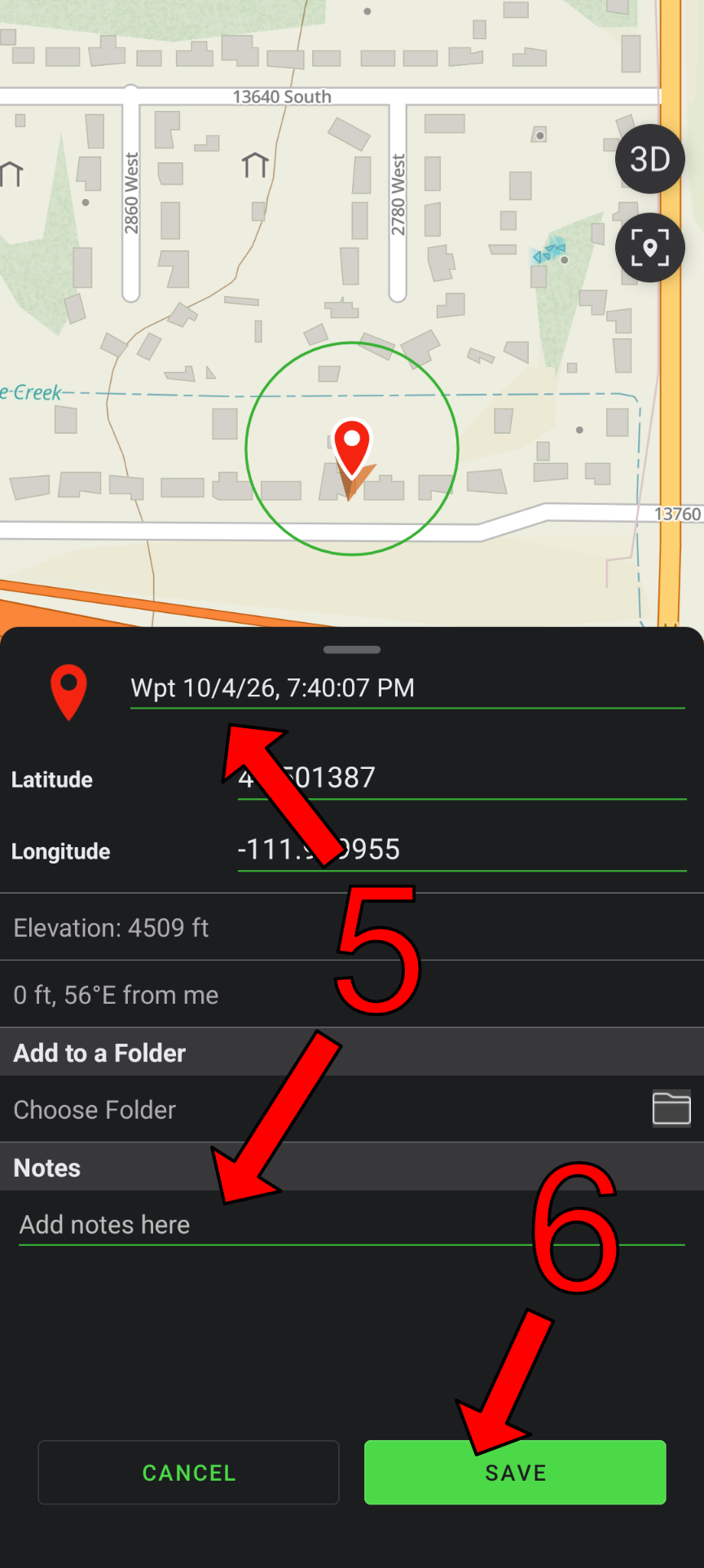
- A window will pop up. Name the waypoint (for example: "Mile 2") and add any notes (for example: "Cattle Guard").
- Tap Save.
- Keep driving and repeat this process at Mile 4, Mile 6, etc., until you finish your assigned section. Be sure to do the same for anything else that needs to be marked, such as cattle guards.
Step 4: Finish and Save
Once you reach the end of your trail section:
- Tap the recording timer on your screen.
- Select Finish Track.
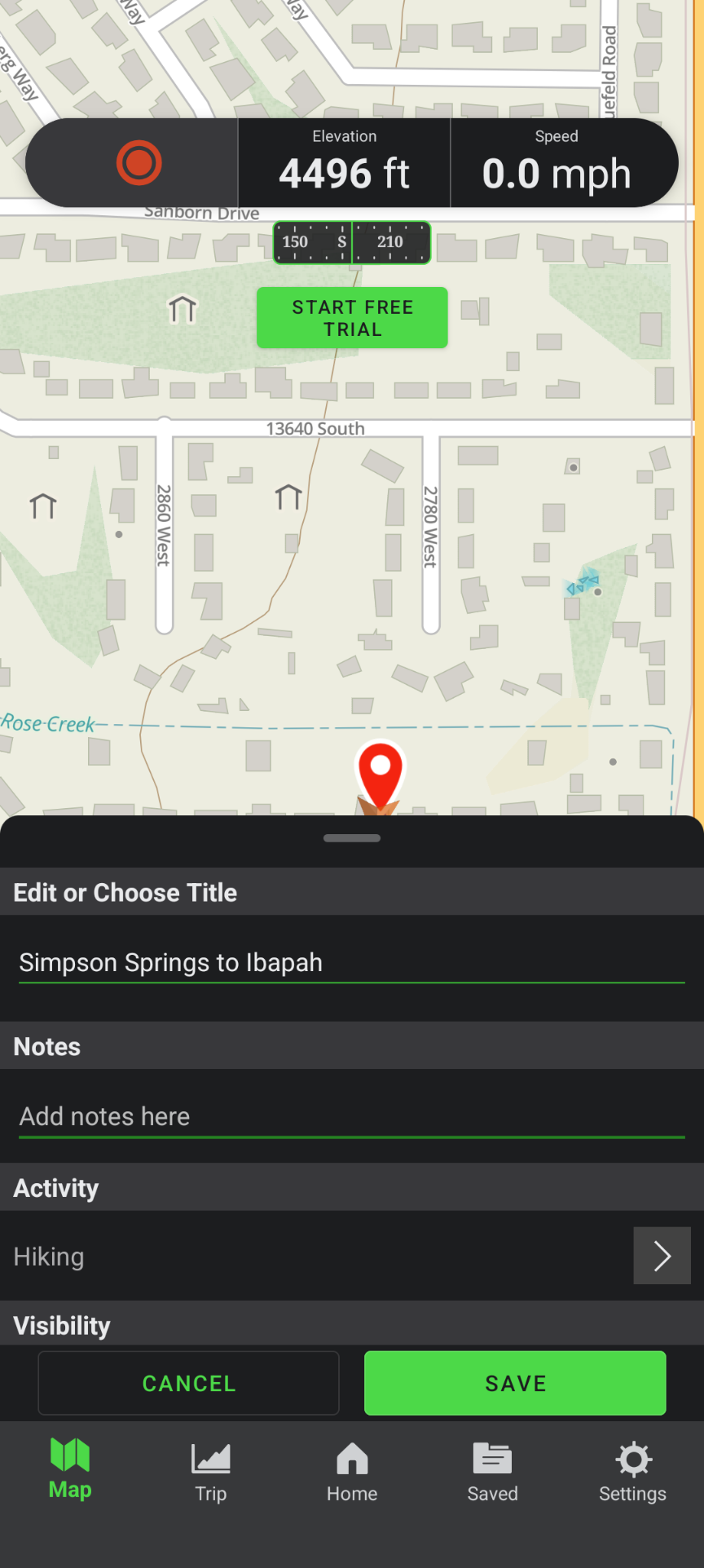
- Type in a name for your ride (e.g., "Simpson Springs to Ibapah").
- Tap Save.
Step 5: Send the Files to us
Now, you just need to email that recorded track to the development team so it can be added to the official map.
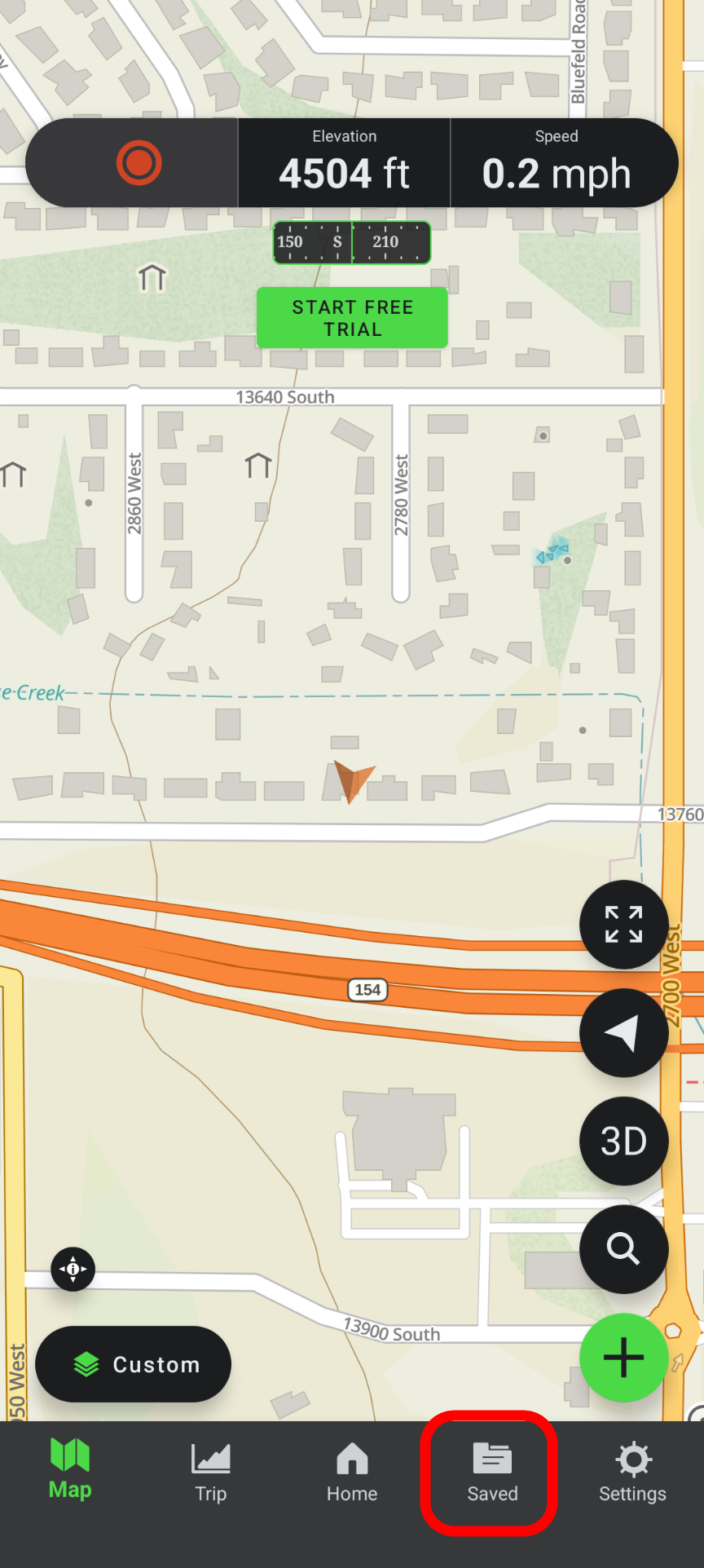
- At the bottom of the Gaia app, tap the Saved icon (it looks like a folder).
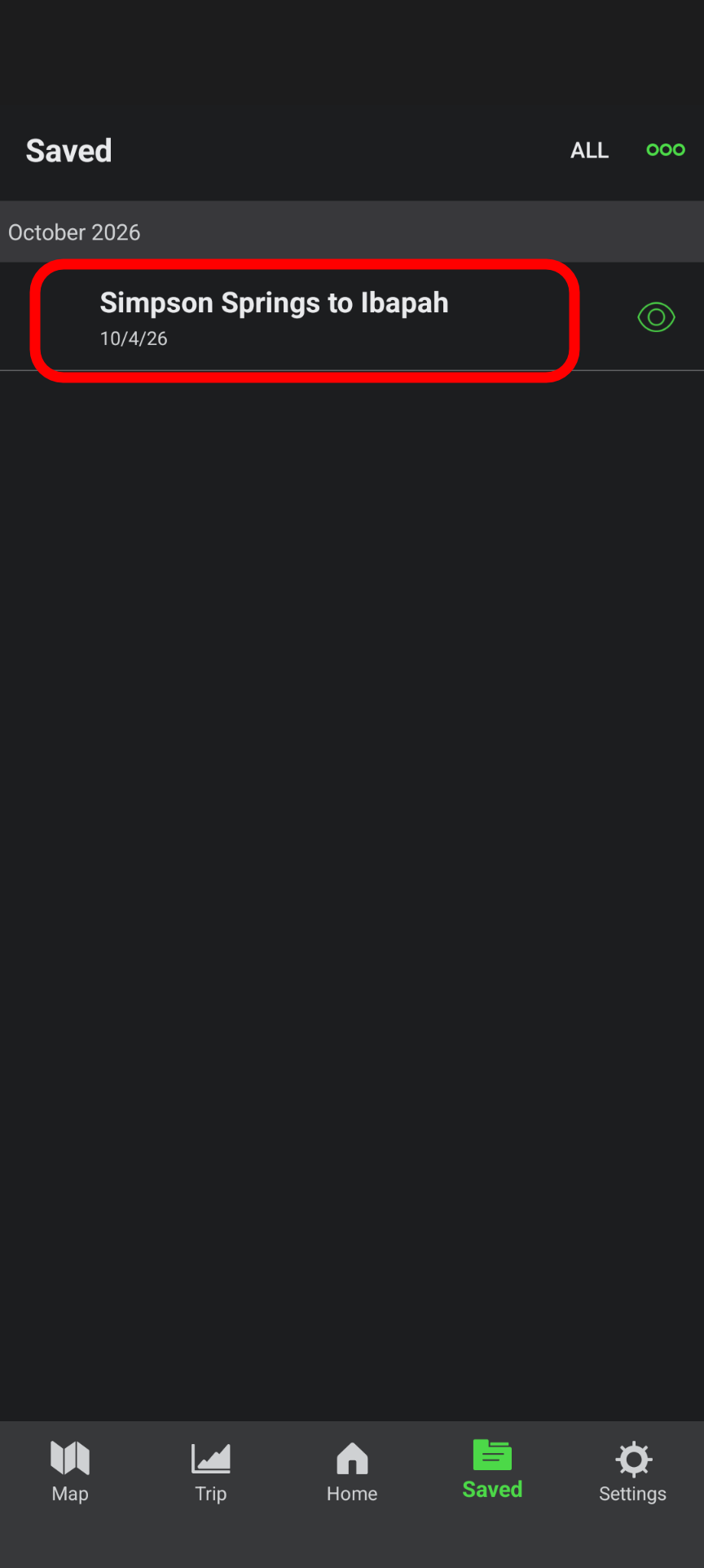
- Tap on the track you just saved.
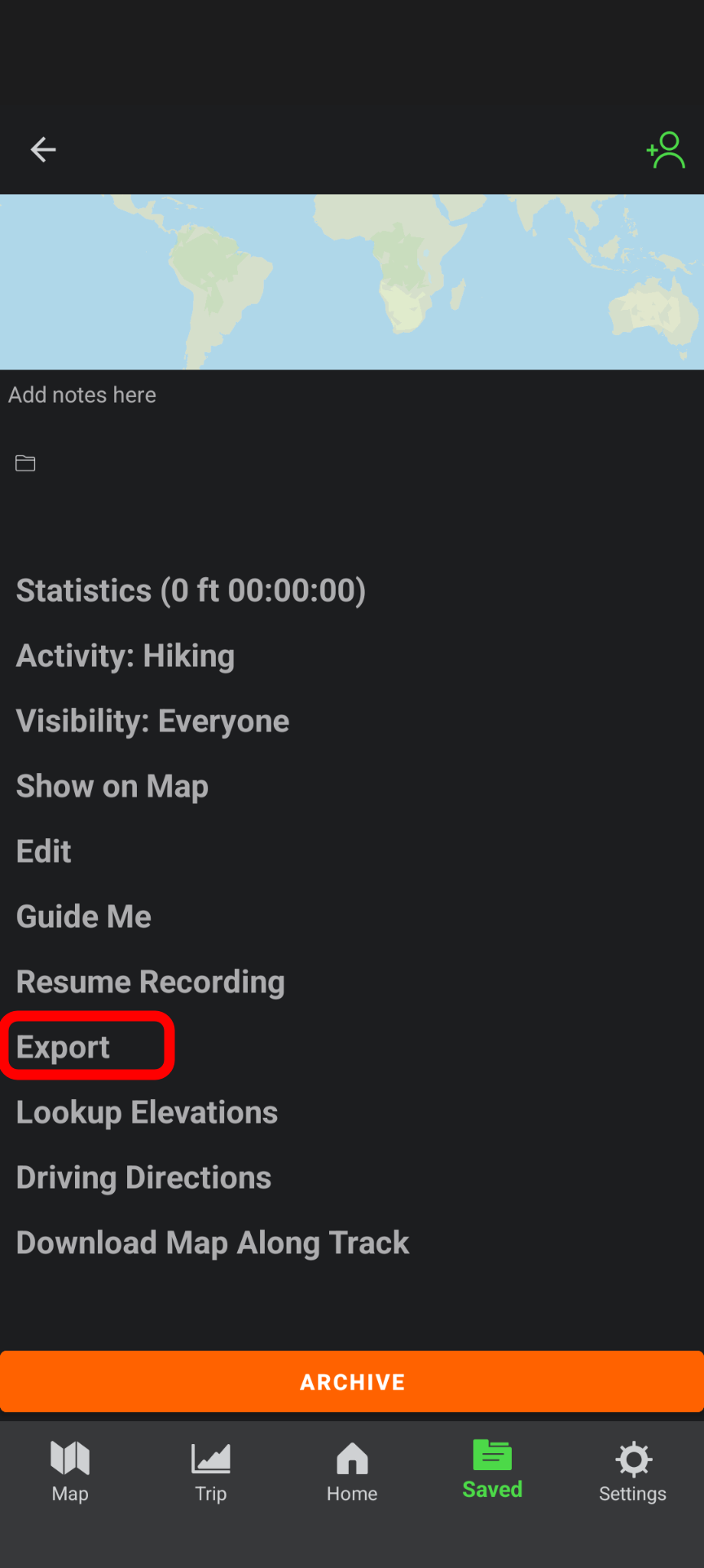
- Look for the Export or Share button
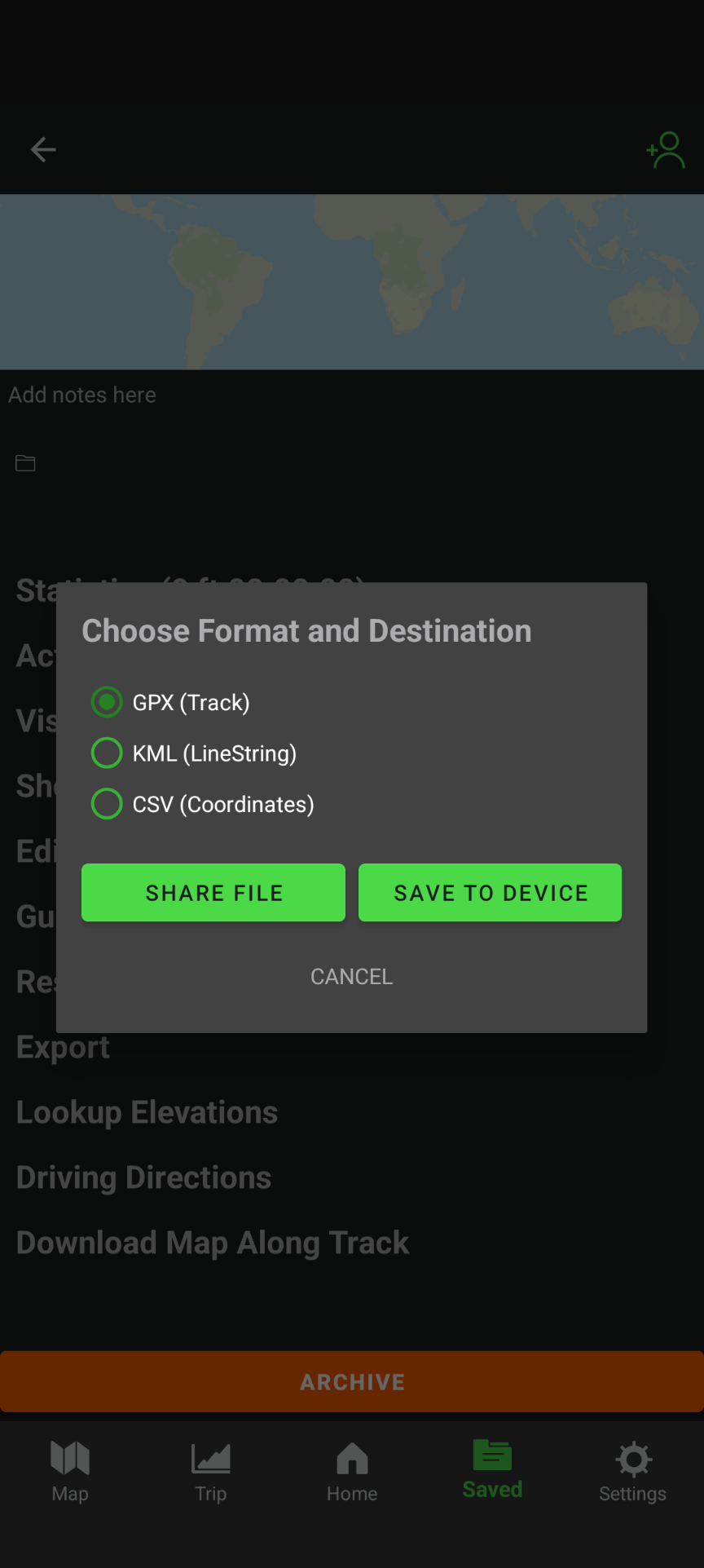
- Select GPX (Track)and tap Share File.
- Select your phone's email app (like Gmail or Apple Mail) and a new message will pop up with the file already attached
- Email the file directly to: labs@garrettleslie.com.